1. Scope
The Contact Us feature covers various types of inquiries, requests, and reports, categorized based on inquiry
type and corresponding sub-categories as follows:
1.1 Related to Portal Use
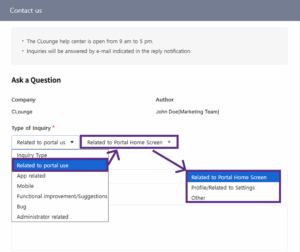
Used for questions or issues related to the CLounge portal. Sub-categories include:
- Portal Home Screen – issues on the main portal interface (dashboard, widgets, or shortcut menus).
- Profile / Settings – inquiries or problems related to user profile or preference settings.
- Other – portal-related issues not covered above.
1.2 App Related
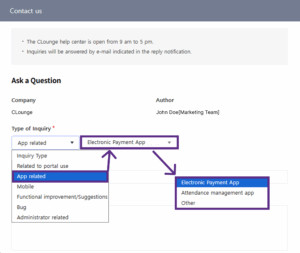
Covers matters related to the CLounge application and its supporting systems. Sub-categories:
- Electronic Approval App – issues related to the electronic payment application.
- Attendance Management App – problems encountered in the attendance management application.
- Other – application-related concerns not specified above.
1.3 Mobile

Used for reports or inquiries related to the mobile version of CLounge. Sub-categories:
- CLounge App – issues within the main CLounge mobile app.
1.4 Functional Improvement / Suggestions
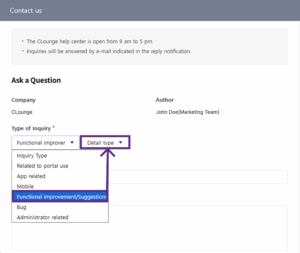
Intended for providing feedback, suggestions, or requests for feature enhancements and functional improvements within the CLounge system.
1.5 Bug
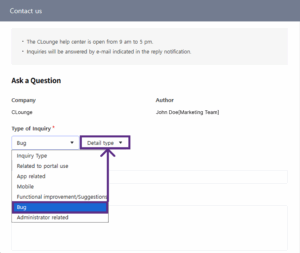
For reporting bugs, errors, or system malfunctions affecting the portal or CLounge applications.
1.6 Administrator Related
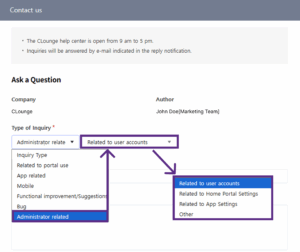
Covers administrative or configuration-related inquiries. Sub-categories:
- Related to User Accounts – user account creation, modification, or deletion.
- Related to Home Portal Settings – portal layout or configuration settings.
- Related to App Settings – application-level configuration or permission settings.
- Other – other administrative matters not included in the above categories.
The Contact Us feature serves as the official communication channel for all categories listed above, ensuring that every inquiry, request, and report is properly documented, efficiently processed, and systematically handled by the responsible team.
2. Access the Contact Us Feature
The Contact Us feature can be accessed directly through the CLounge Portal. This menu is provided to ensure that users can conveniently submit inquiries, requests, or reports without the need for external communication channels. Access Path (Web Portal) :
- Log in to the CLounge Portal using your registered account.
- Navigate to the top menu bar.

- Select “Contact Us” from the available options.
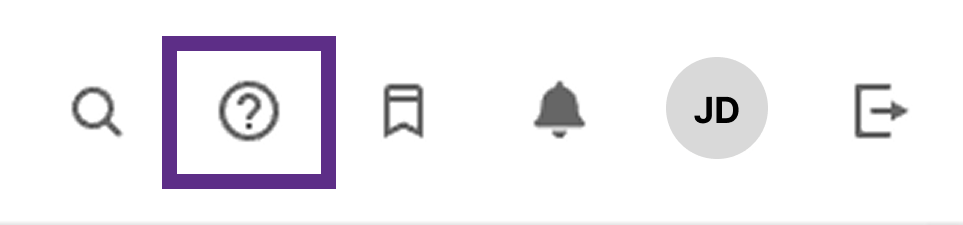
- The Contact Us form page will open, where you can select the inquiry type, fill in the required fields, attachment, and submit your request.
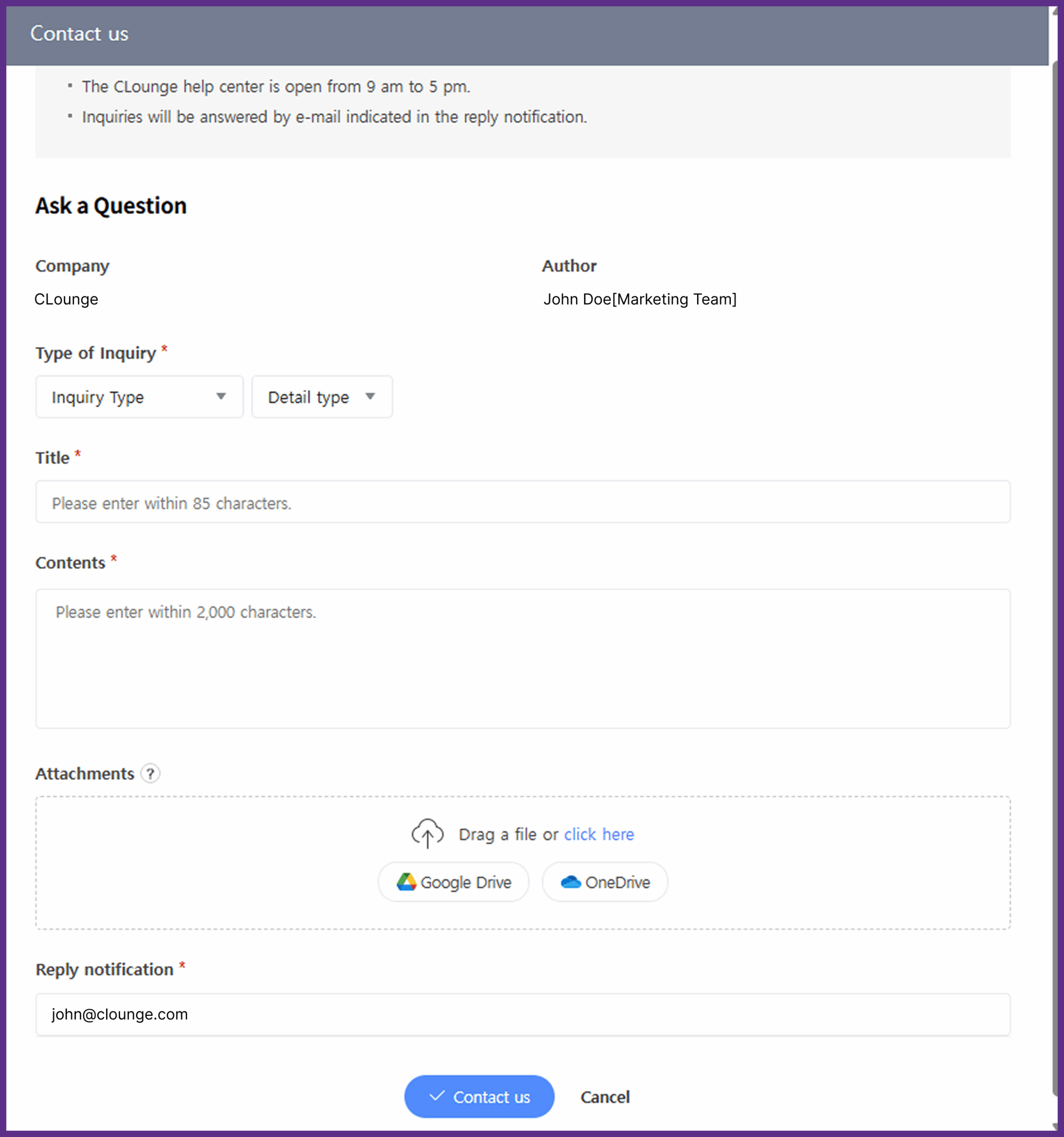
3. Guidelines for Submitting an Inquiry
To ensure that every request or report submitted through the Contact Us feature can be processed accurately and efficiently, users are encouraged to provide complete and relevant information based on the type of inquiry being submitted.
3.1 Bug or System Report
When reporting a bug or system error, please include the following details to help the team analyze the issue more effectively:
- Clear description of the issue encountered.
- Date and time of occurrence.
- Page or feature where the issue was found.
- Steps taken prior to the error (if applicable).
- Screenshot(s) showing the error message or the unexpected display.
- (Optional but highly recommended) Screenshot of the browser’s Console (F12) view, especially if there are visible error messages or logs related to the issue.
3.2 General Inquiries or Feature Usage Questions
For questions related to the use or functionality of the system:
- Clearly specify the feature or page in question.
- Explain what you are trying to do and which part is unclear or not working.
- Include screenshots if necessary to help clarify the context.
3.3 Feedback or Feature Enhancement Suggestions
When providing feedback or suggestions for improvement:
- Clearly describe the feature or process being discussed.
- Explain the limitations or difficulties currently experienced.
- Provide your suggested enhancement or improvement idea.
- (Optional) Include the expected benefits or positive impact of the proposed change.